

Write an email with AI
You don't have to write emails from scratch. Describe what you want the email to achieve in plain English, and optyflo's AI instantly generates a matching subject line and HTML body — saved as a reusable template you can edit later.
There are two places to do this, and both save the result to your template library:
| Where | Best when |
|---|---|
| The AI Email Generator page | You just want to write an email. |
| The AI Generator inside the campaign wizard | You're already building a campaign. |
AI usage limits
AI generation is subject to per-account daily and monthly limits (shown to you if you hit them). If you see "AI features are disabled for your account," ask your admin to enable them.
Option A — The AI Email Generator page
This is the standalone writer. It lives at Email Templates → AI Email Generator (/client/email-templates/ai-generator). Its subtitle sums it up: "Describe the email you want to write, and our AI will instantly generate the Subject matching HTML content."
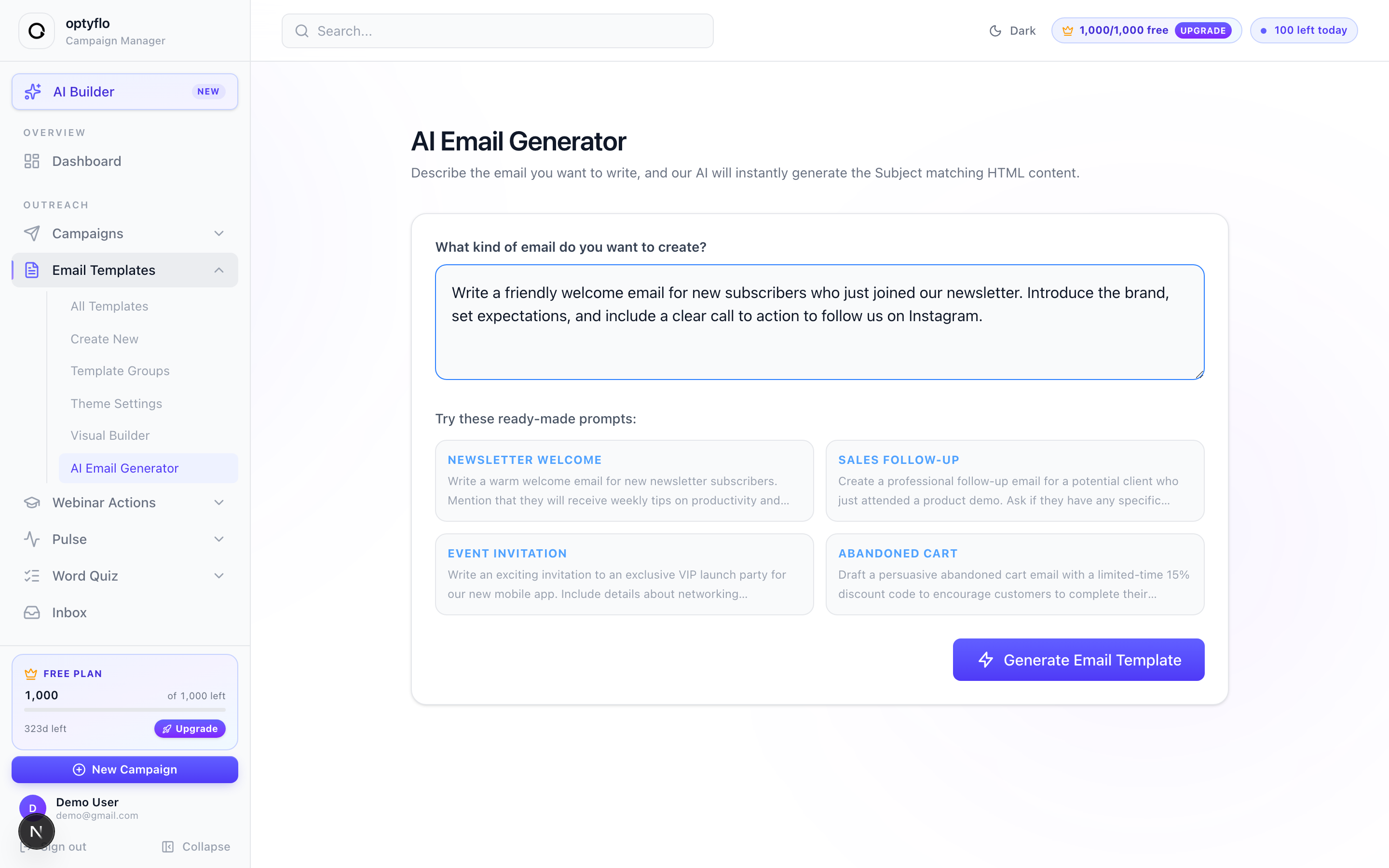 Describe your goal, then let optyflo write the subject line and HTML content.
Step 1 — Describe the email
Type your goal into the "What kind of email do you want to create?" box. Be specific about the audience, the offer, and the call to action — the more detail you give, the sharper the draft. For example:
"Write a friendly welcome email for new subscribers who just joined our newsletter. Introduce the brand, set expectations, and include a clear call to action to follow us on Instagram."
Short on ideas? Under Try these ready-made prompts:, click a preset — Newsletter Welcome, Sales Follow-up, Event Invitation, or Abandoned Cart — to pre-fill a starting point you can tweak.
Step 2 — Set the sign-off (optional)
Under Sign-off details, set the Sender name — and tick Include business name if you'd also like your business name in the closing. These populate the sign-off of the generated email so it reads as if it came from you, not a generic template.
Step 3 — Generate and preview
Click Generate Email Template. optyflo writes the subject and body, then shows a live preview rendered with your account's email theme, so you see exactly how it will land in the inbox.
Step 4 — Save it to your library
Click Save to Library (the button reads Saving… while it works). The email becomes a normal, reusable template you can drop into any campaign and refine further in the visual builder.
Option B — Generate while building a campaign
When you're in the campaign wizard on Step 2 (Select Email Templates), the first card in the grid is Generate with AI ("Describe your goal and let AI craft the perfect email body"). Click it to open the AI Email Generator modal — marked with a Phase 4 Intelligence badge — without leaving the wizard.
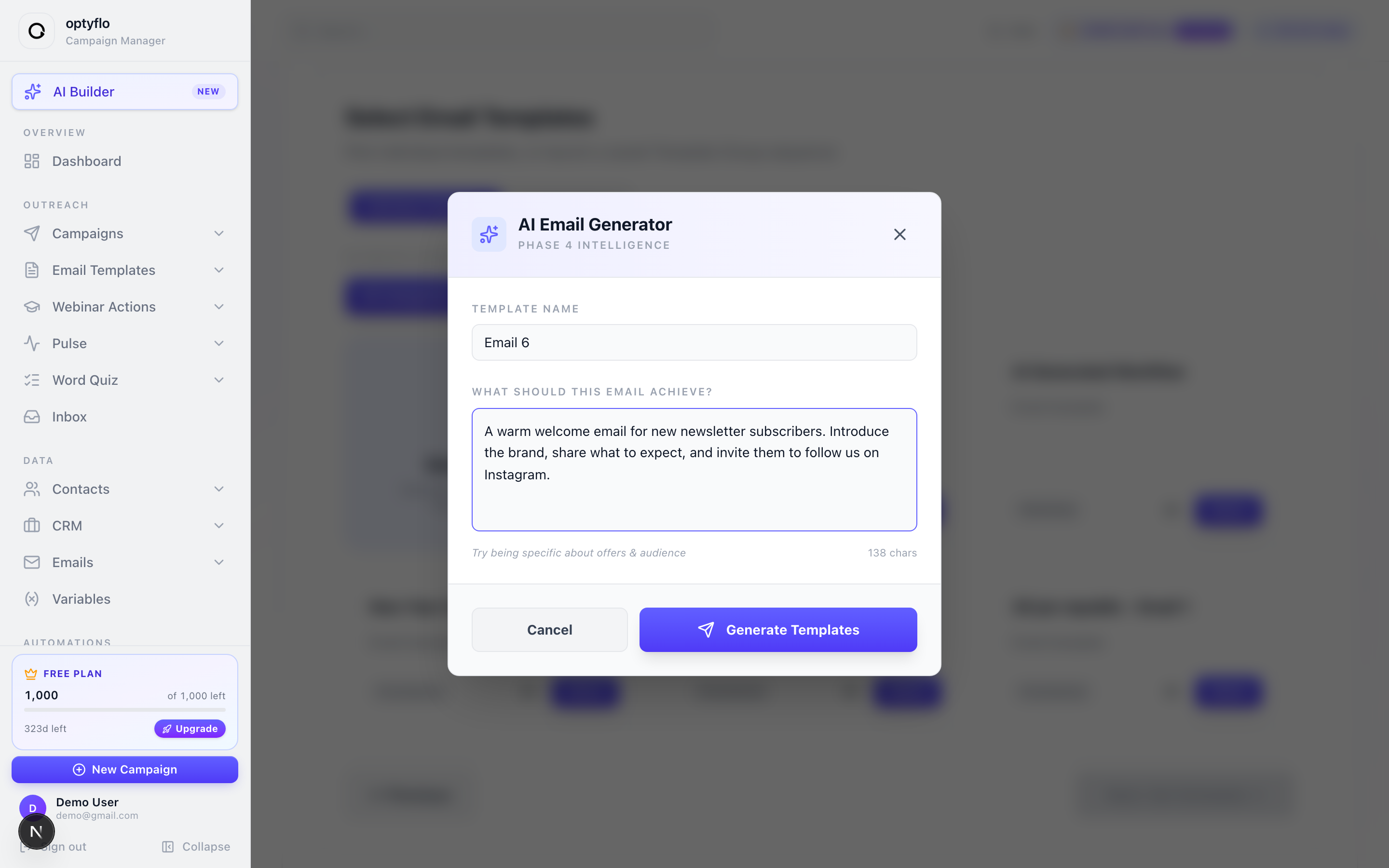 The in-campaign AI modal — name the template, describe the goal, and generate without losing your place.
Step 1 — Name and describe
Give the template a name in the Template Name field, then describe the email under "What should this email achieve?" The helper text nudges you to "Try being specific about offers & audience," and a live character counter tracks your input. The same guidance from Option A applies — spell out the audience, offer, and call to action.
Step 2 — Generate the template
Click Generate Templates (the button reads Crafting Content… while it works, or click Cancel to back out). The generated email is saved to your library and automatically selected for the campaign you're building — so you can keep moving through the wizard.
Personalization tokens
Generated emails — like any template — can include merge tags such as , , and that get filled in per recipient at send time. See Email templates for the full list.
Looking for the "AI Builder" in the sidebar?
The AI Builder button in the sidebar is a different tool — a chat assistant that builds and edits automations, not single emails. It reads your real templates, contacts, and tags, and stages workflow changes you can test (dry-run or send a test to yourself) before going live via Promote to Live. See Build an automation for that.
Next: manage your templates or create a campaign.