

Email templates
Templates are reusable emails you build once and use across campaigns and automations. optyflo gives you three ways to create them, plus a drag-and-drop visual builder to refine every detail.
Your template library
Open your library at Email Templates (/client/email-templates). This is home base for every email you've made or been given.
Use the All / Personal / Public tabs to browse your private templates and public templates created by admins. You can search your templates, rename them, and bulk-delete; AI-made templates carry an AI Generated badge. Click Edit in Visual Builder on any card to open it in the editor (/client/email-builder/{id}/edit).
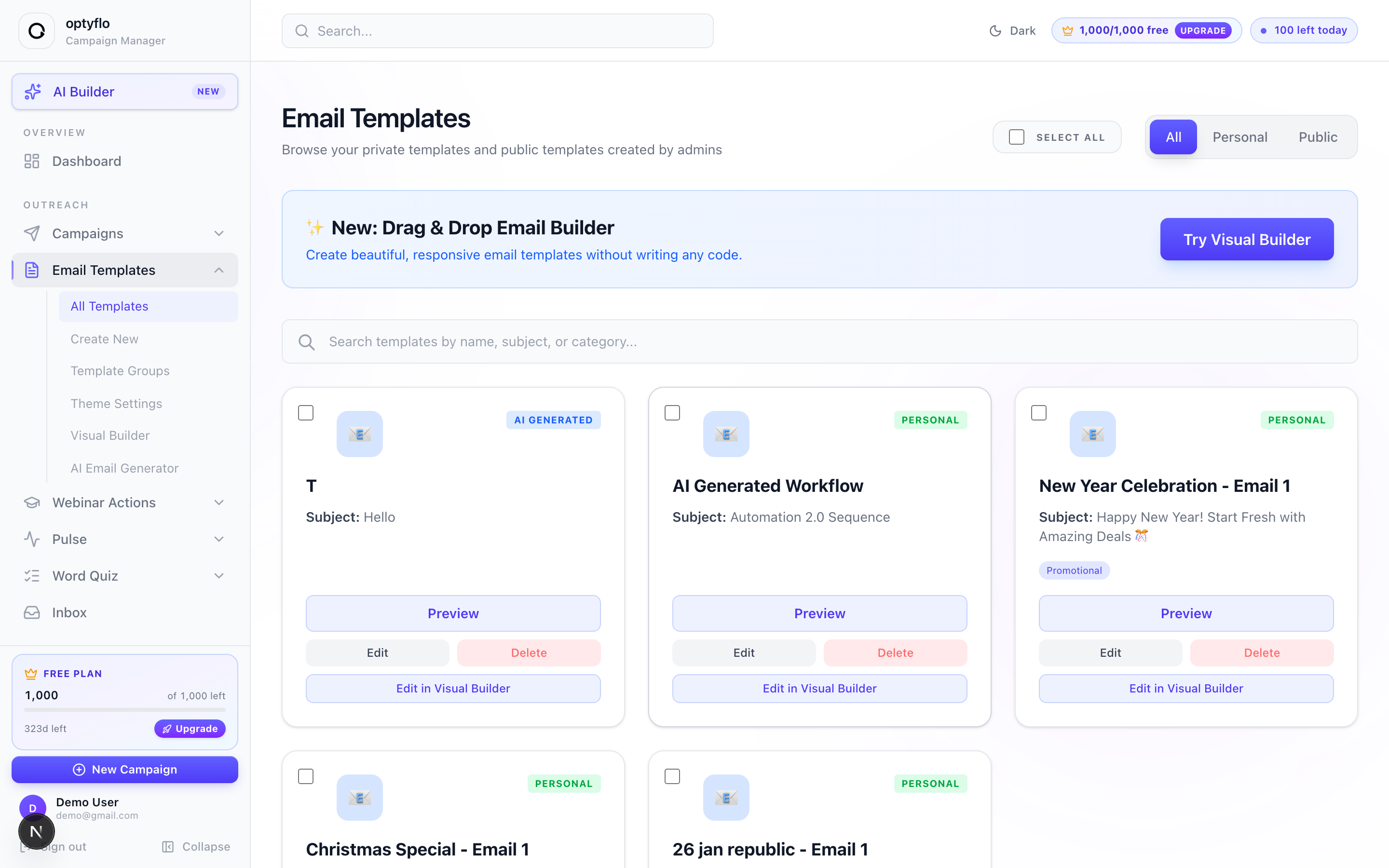 Your template library — filter by All / Personal / Public, search, and open any template in the visual builder.
Step 1 — Pick how you'll create the template
You have three routes to a new template. Choose the one that fits how much you want to design by hand.
| Way | Route | Best when |
|---|---|---|
| Write it with AI | AI Email Generator | You want a finished draft fast. See Write an email with AI. |
| Design in the Visual Builder | /client/email-builder/new | You want full control over layout. |
| Start from a starter | /client/email-builder (Starter tab) | You want a pre-designed layout to customize. |
Step 2 — Design it in the Visual Builder
Open the drag-and-drop editor at Create New → Visual Builder (/client/email-builder/new), titled Create Visual Template. This is where you assemble an email block by block.
Set the two fields at the top — Internal Template Name (how you'll find it later; e.g. Summer Promo 2024) and Email Subject Line (what recipients see; e.g. Don't miss our summer sale!). Then drag blocks from the left Elements panel onto the canvas:
| Group | Blocks |
|---|---|
| Basic | Text, Heading, Button, Divider, Spacer |
| Media | Image, Social |
| Advanced | Columns |
| AI blocks | AI Opener, AI CTA, Smart Signature — content tailored per recipient at send time |
Select any block to style it in the right-hand inspector — Content Width, Background Color, Font Family, Font Size, Content Alignment, and more. The top bar autosaves (Saved just now), and Preview lets you check desktop and mobile before you hit Save.
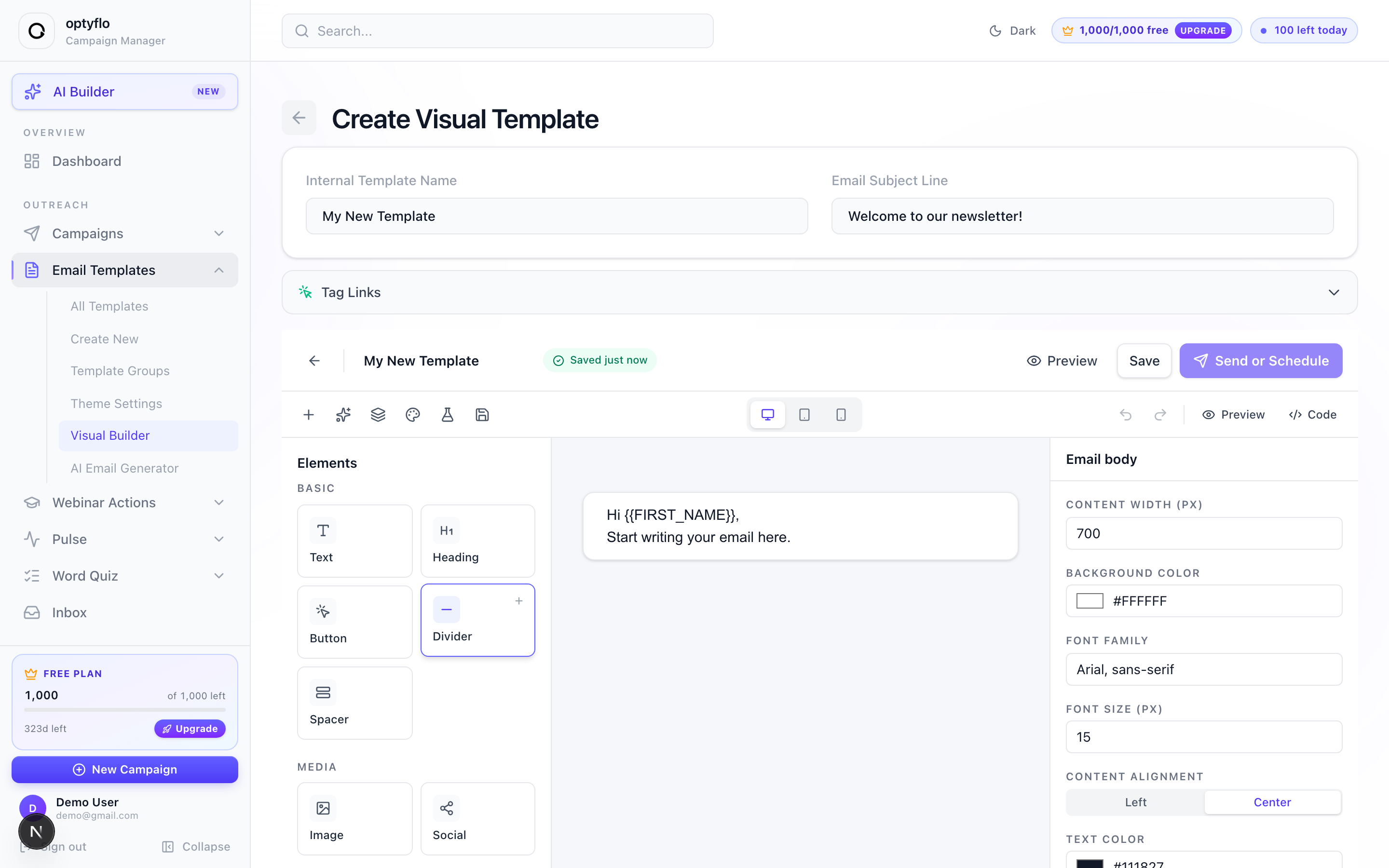 Drag blocks from the Elements panel, then style each one in the right-hand inspector.
Step 3 — Or start from a starter template
Open the Visual Builder gallery (/client/email-builder) and switch to the Starter tab. It holds pre-designed layouts — pick one as your foundation, then customize it in the same editor instead of building from a blank canvas.
Personalization (merge tags)
Insert merge tags anywhere in a template and optyflo fills them in per recipient at send time. Type them in the form:
| Category | Tags |
|---|---|
| Contact | |
| Business | |
| Compliance | |
| AI | |
Group templates into sequences
Under Email Templates → Template Groups you can bundle several templates into a sequence with send offsets (e.g. day 0, day 2, day 5). A campaign or automation can then send the whole group in order.